Does Nest Camera Work with Apple HomeKit? (2026 Guide)
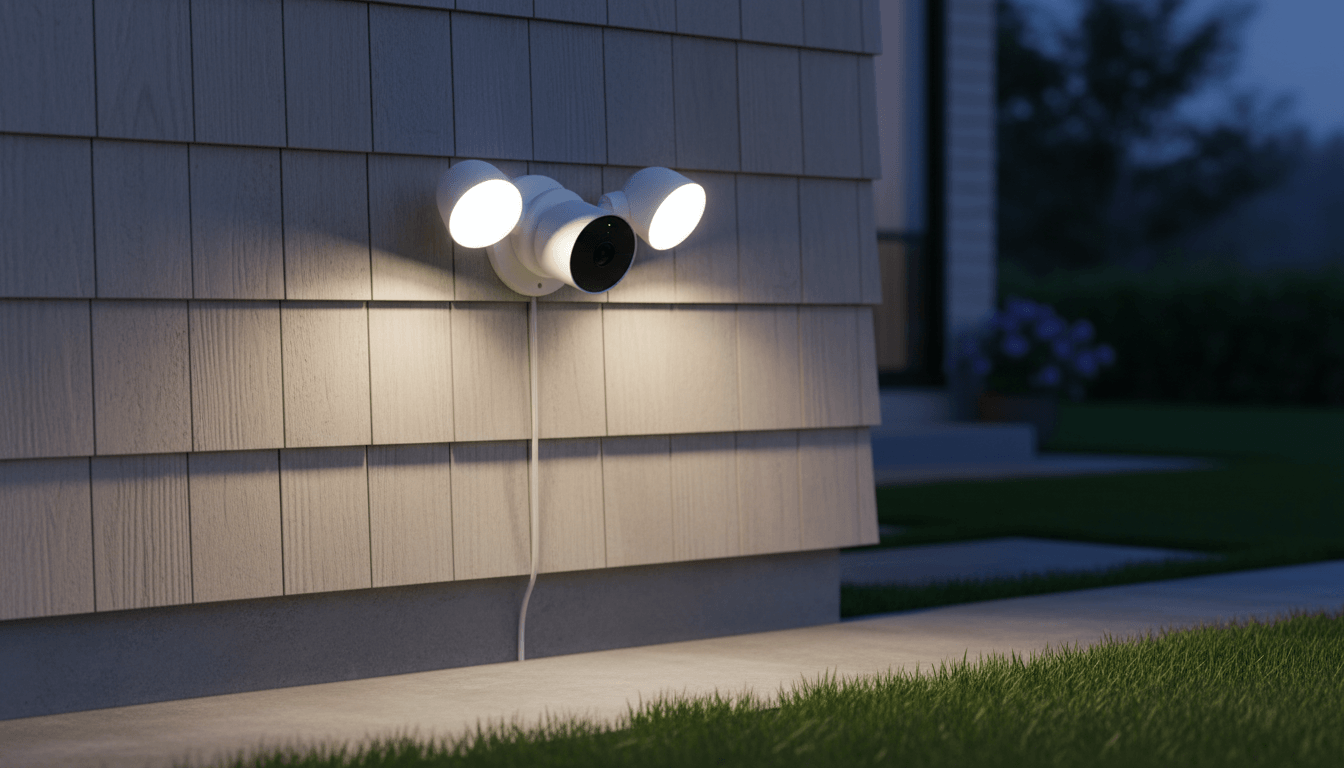
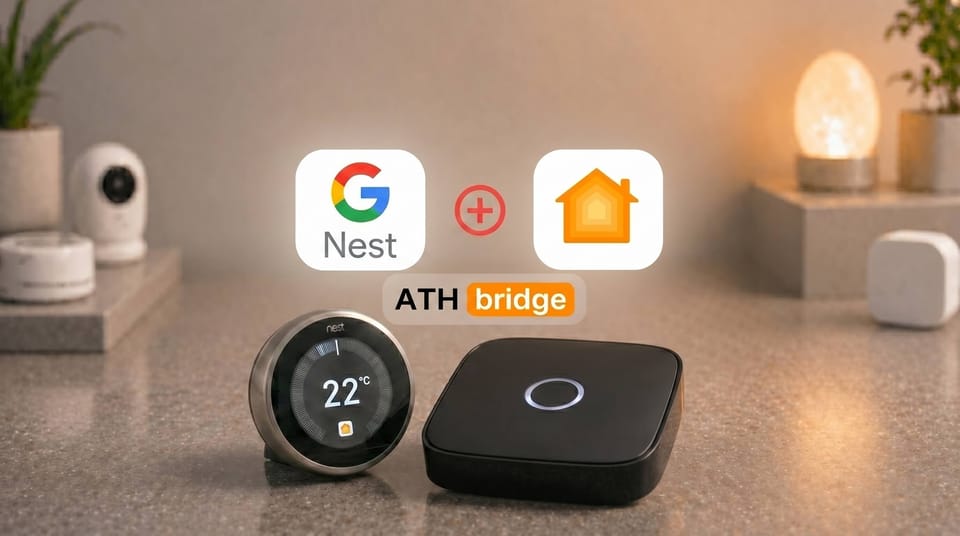
No, Nest Cameras do not work with Apple HomeKit natively. Google has not certified any Nest Cam or Nest Doorbell for HomeKit, so there's no official Siri control or Apple Home app integration out of the box. The fix is ATH Bridge, a plug-and-play HomeBridge server that connects your Nest account to Apple Home in minutes, no coding required.
This guide covers exactly which Nest Camera models work, how to set up the connection, and what you get once it's running.
Nest Camera + Apple HomeKit Compatibility at a Glance
| Question | Answer |
|---|---|
| Does Nest Camera work with HomeKit out of the box? | No a bridge is required |
| Does it work after setup? | Yes, as a full HomeKit accessory |
| Is Siri supported? | Yes |
| Is HomeKit Secure Video supported? | Yes, for most wired models |
| Is a subscription required? | No ATH Bridge is a one-time purchase |
| Setup time | Under 15 minutes |
What Are the Options for Bridging Nest to HomeKit?
There are two practical routes for most homeowners: a dedicated hardware bridge running HomeBridge, like ATH Bridge, or software you run yourself on always-on hardware you already own.
ATH Bridge (Recommended)
ATH Bridge is a plug-and-play hardware server that comes with HomeBridge pre-installed. It connects non-HomeKit devices, like Nest Cameras, to the Apple HomeKit ecosystem so you can centralize control, build automations, and monitor your home from one app.
DIY Homebridge or Scrypted
If you already run an always-on Raspberry Pi, Mac, PC, or Home Assistant server, you may not need dedicated hardware.
HomeBridge uses plugins, like homebridge-nest-accfactory, to bridge Nest devices into HomeKit. It's a solid DIY option if you're comfortable with command-line setup and ongoing plugin maintenance.
Scrypted is particularly strong for cameras and doorbells. It offers high-performance streaming and supports HomeKit Secure Video for compatible camera setups.
Native Matter Integration (Thermostats Only)
If you own a 4th Generation Nest Learning Thermostat, you can connect it directly through Settings → Matter on the thermostat, then scan the generated QR code from the Apple Home app. This gives native, local control, but it currently applies only to the thermostat, not to Nest Cameras or Doorbells. See our full Nest Thermostat to Apple HomeKit guide if that's what you're setting up.
Note: Starling Home Hub, previously a popular hardware option for this integration, has been officially discontinued. ATH Bridge and DIY HomeBridge/Scrypted are the remaining practical routes.
Which Nest Camera Models Work with Apple HomeKit via ATH Bridge?
Nest cameras and doorbells can be brought into Apple Home through a compatible HomeBridge plugin. However, available features can vary by model, account type, and plugin configuration.
| Nest Device | HomeKit via Homebridge | HomeKit Secure Video |
|---|---|---|
| Nest Cameras | Supported | Supported by compatible plugins |
| Nest Doorbells | Supported | Supported by compatible plugins |
Battery-powered 2021-and-later models need the homebridge-google-nest-sdm instead of the standard one. Everything else works with the default homebridge-nest accfactory plugin.
Why Doesn't Nest Camera Work with Apple HomeKit Natively?
Google and Apple run competing smart home ecosystems. Nest devices are built for the Google Home platform, and Apple HomeKit has its own certification program for third-party hardware. Google has not submitted Nest Cameras for HomeKit certification, so the gap exists by design, not because of a technical limitation.
A bridge device closes that gap by sitting between the Nest API and the HomeKit protocol, translating one into the other so your camera shows up in Apple Home as if it belonged there natively. ATH Bridge does this by running HomeBridge locally on your network, which keeps response times fast and the connection stable.
Find more on Does My Nest Camera Actually Work with Apple HomeKit?
Step-by-Step: How to Add Nest Camera to Apple HomeKit Using ATH Bridge
- Purchase the device and connect ATH Bridge to your network.
- Follow the ATH Bridge setup guide to complete the initial setup.
- Open the ATH Bridge interface using your browser or app.
- Go to the Plugins tab and install
homebridge-nest-accfactory.
- Enter your Nest or Google account credentials to link the plugin to your camera.
- ATH Bridge generates a HomeKit pairing code.
- Scan the code with your Apple device to start pairing.
- You may see a compatibility warning because ATH Bridge is acting as an intermediary.
- Approve the connection to continue.
- Once paired, your Nest Camera should appear in the Apple Home app.
- You can then access supported live feeds, automations, and Siri controls.
Read more: 6 ways to add Nest devices to Apple HomeKit
What Are the Benefits of Nest Camera + Apple HomeKit Integration?
One app for everything. Your Nest Camera sits alongside your other HomeKit devices in Apple Home, so you're not switching between the Google Home app and Apple Home.
Siri camera commands. Say "Hey Siri, show me the front door" and the live feed appears instantly on your iPhone, iPad, or Apple TV.
Private, encrypted footage. With HomeKit Secure Video enabled, recordings are stored encrypted in your iCloud account instead of on Google's servers. HKSV footage does not count toward your iCloud storage limit.
Motion-triggered automations. When your camera detects motion, you can have porch lights turn on, the TV pause, or a notification sent, all running through Apple Home with any HomeKit device you own.
Family access without a Google account. Through HomeKit Home sharing, family members can view the camera from their own iPhone without logging into Google or installing the Nest app.
Works while you're away. As long as ATH Bridge is powered and connected, your camera stays live in HomeKit from anywhere.
Explore more: How to Add Nest Thermostat to Apple HomeKit, Ring Camera to Apple HomeKit, and Wyze Camera to Apple HomeKit
How to Choose the Right Bridge for Your Nest Camera
The success of your Nest Camera integration with Apple HomeKit heavily depends on choosing the right Bridge. Here are some key considerations to help you make an informed decision:
- Compatibility: Ensure that the Bridge you choose supports the necessary plugins for Nest Camera integration. Verify its compatibility with both your camera model and the HomeKit ecosystem.
- Reliability: Look for a reputable Bridge brand that is known for stable performance and regular updates to ensure a smooth experience.
- Ease of Setup: A plug-and-play device avoids config file editing and command-line work.
If you're also connecting other non-HomeKit devices, see our guides for Tuya ZigBee Hub or myQ Camera integration through the same bridge.
Why Isn't My Nest Camera Showing in HomeKit? (Troubleshooting)
Camera not appearing after setup: Restart HomeBridge from the ATH Bridge dashboard, then restart the Apple Home app. If it still doesn't show, remove and re-add the accessory.
Authentication error or invalid token: Your Google or Nest session token has likely expired. Get a fresh token from home.nest.com and update it in the plugin settings.
Live stream not loading: The plugin uses ffmpeg, which ATH Bridge includes by default. Check the HomeBridge logs tab for ffmpeg errors.
Showing as a switch instead of a camera: The plugin setup is likely incomplete. Confirm your credentials are correct and that the camera is visible in the Nest or Google Home app first.
Battery-powered 2021+ Nest Cam not appearing @josephsjc/homebridge-google-nest-sdm plugin from the Plugins tab instead of the standard one.
Final Verdict
ATH Bridge is a practical way to bring compatible Nest Cameras into Apple HomeKit. It provides a ready-to-use Homebridge server, helping you avoid much of the manual setup required with a DIY Homebridge installation. Depending on your Nest model and the compatible plugin you use, you may be able to access camera controls, Siri, and supported HomeKit features through Apple Home.
Frequently Asked Questions
@josephsjc/homebridge-google-nest-sdm plugin instead of the standard one.
@josephsjc/homebridge-google-nest-sdm plugin.
@josephsjc/homebridge-google-nest-sdm plugin.

Ishara Fernando
Smart Home Researcher | Zigbee & Smart Home Technology Expert | Sharing Real-World Experiences & Research | Blogger & Freelance Writer | Turning Complex Smart Home Tech Into Simple, Practical Guides | Helping You Build Smarter, Connected Homes