How to Add Nest Thermostat to Apple HomeKit
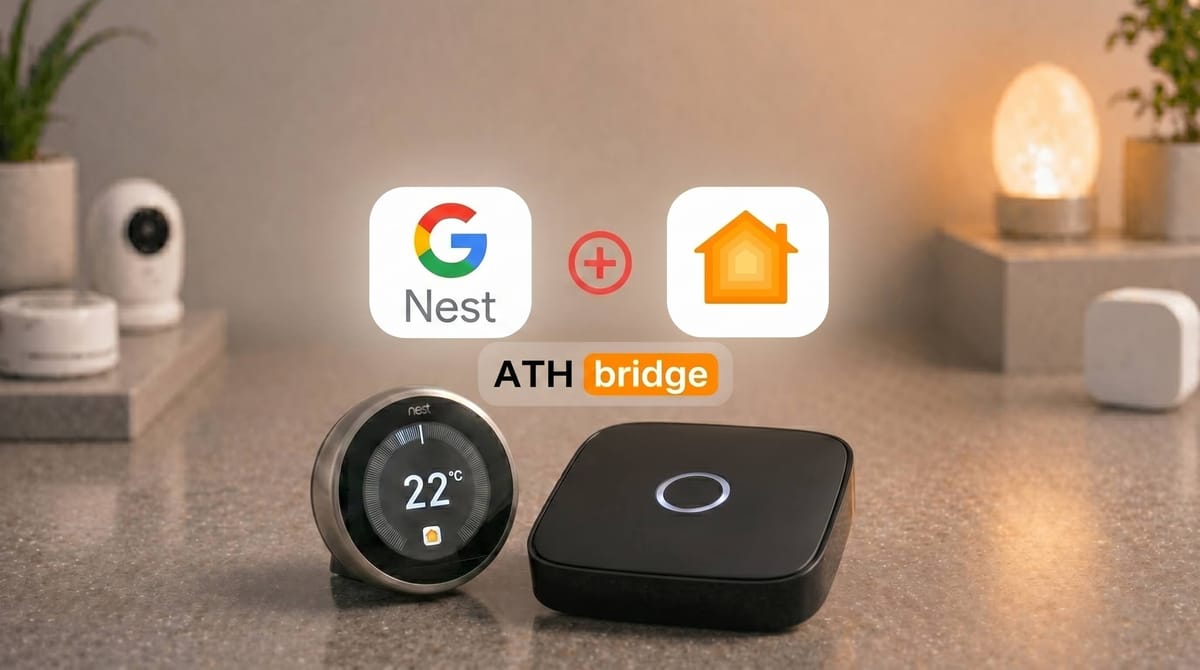
If you use a Google Nest thermostat and want to control it through Apple HomeKit, you may notice that most Nest thermostats do not support HomeKit natively. However, there are several reliable ways to integrate your Nest Thermostat with the Apple Home app.
In this comprehensive guide, we will explore the step-by-step process of adding your Nest Thermostat to Apple HomeKit.
Nest Thermostats don’t work directly with Apple HomeKit. You need a bridge.
Best for most users: ATHBridge (plug & play)
Best for 2020 Nest Thermostat owners: Matter (free, but requires an Android phone).
Best for tech enthusiasts: Homebridge (DIY, runs on Raspberry Pi).
What are the Ways to Add Nest Thermostat to Apple HomeKit
There are several methods to connect a Nest thermostat to Apple HomeKit, depending on your device model and preferred setup:
Option 1: Third-Party Bridges
For unsupported models, you can still integrate Nest thermostats into HomeKit using bridge solutions:
- ATHBridge - The easiest method is ATH Bridge. It is a small hardware device you plug into any power outlet. You set it up through a simple app on your iPhone. No technical knowledge is needed. ATH Bridge is the recommended solution for most users.
- Starling Home Hub — A dedicated plug-and-play device that integrates most Nest products, including cameras and smoke alarms. This is no longer available to purchase.
- Homebridge — An open-source platform that runs on devices like a Raspberry Pi and connects Nest via plugins.
- HOOBS — A simplified, pre-configured version of Homebridge designed for easier setup.
Option 2: Native Integration via Matter (Newer Models)
The most straightforward way to use a Nest thermostat with Apple HomeKit is through Matter. This allows direct pairing without additional hardware, aside from a Matter-compatible Apple hub such as a HomePod or Apple TV.
Supported Models
- Nest Learning Thermostat (4th Generation) — Native Matter support
- Nest Thermostat (2020) — Supports Matter via firmware update (version 1.3 or later)
Unsupported Models
Older devices do not support Matter, including:
- Nest Learning Thermostat (3rd Generation)
- Nest Thermostat E
Which Nest Thermostat Models Are Compatible with Apple HomeKit?
The first thing you need to know is which model you own. Not all Nest thermostats work the same way with Apple HomeKit.
| Nest Model | Native HomeKit (Matter) | Works with ATH Bridge |
|---|---|---|
| Nest Learning Thermostat (4th Gen, 2024) | ✅ Yes | ✅ Yes |
| Nest Thermostat (2020) | ✅ Yes | ✅ Yes |
| Nest Learning Thermostat (3rd Gen) | ❌ No | ✅ Yes |
| Nest Thermostat E | ❌ No | ✅ Yes |
| Nest Learning Thermostat (1st and 2nd Gen) | ❌ No | ✅ Yes |
Key takeaway: ATH Bridge works with every Nest thermostat model. Matter only works with the two newest models.
What Is the Easiest Way to Connect Nest Thermostat to Apple HomeKit?
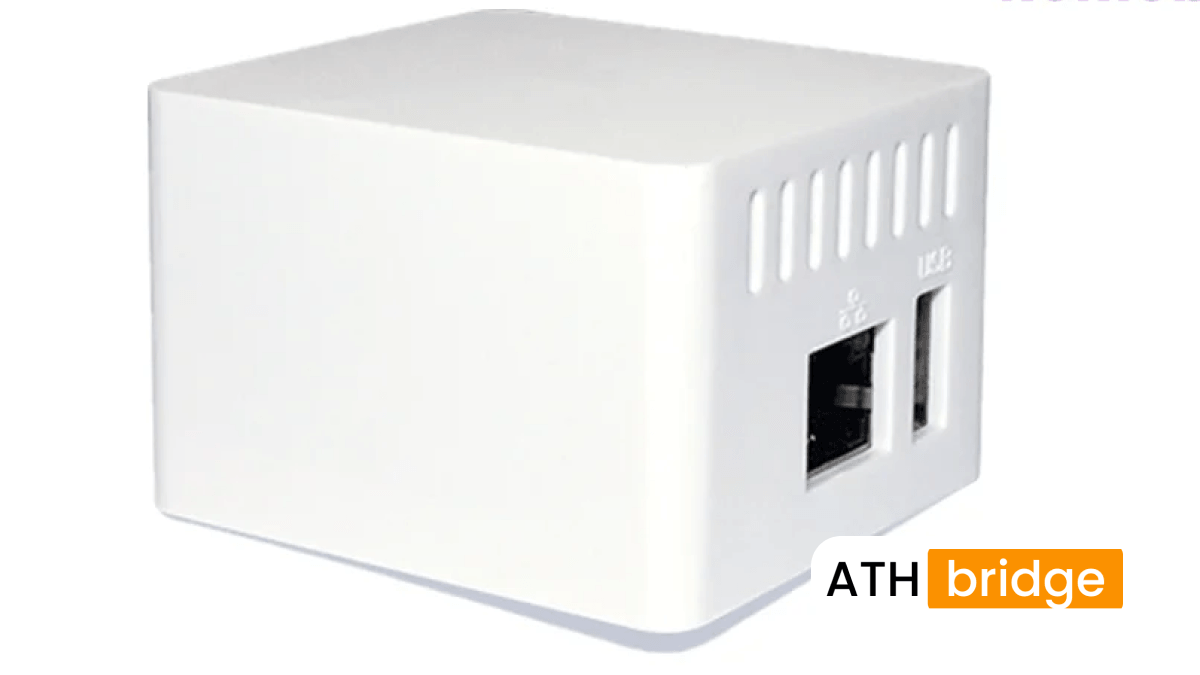
ATH Bridge works with all Nest thermostat models. It takes less than 15 minutes to set up. After setup, your Nest thermostat appears in the Apple Home app just like any native HomeKit device.
ATH Bridge is the recommended solution for most users.
How to Add Nest Thermostat to HomeKit Using ATH Bridge (Step-by-Step)
What You Need Before You Start
- ATH Bridge device
- Any Nest thermostat (any model, any generation)
- iPhone or iPad with iOS 16 or later
- Apple Home app installed
- A working home Wi-Fi connection
Step-by-Step Setup
Step 1: Plug In ATH Bridge
Connect ATH Bridge to a power outlet. Keep it near your Wi-Fi router for the best signal. The device powers on automatically.
Step 2: Download the ATH Bridge App
Open the App Store on your iPhone. Search for "ATH Bridge" and install the app.
Step 3: Connect ATH Bridge to Your Wi-Fi
Open the ATH Bridge app. Follow the on-screen instructions to connect the device to your home Wi-Fi network. This takes about 2 minutes.
Step 4: Link Your Google Nest Account
Inside the ATH Bridge app, tap "Add Device." Select "Google Nest Thermostat." Sign in with your Google account. This allows ATH Bridge to communicate with your thermostat.
Step 5: Add the Thermostat to Apple Home
The ATH Bridge app generates a HomeKit pairing code. Open the Apple Home app. Tap the "+" button. Select "Add Accessory." Scan the code shown in the ATH Bridge app.
Step 6: Choose a Room and Name the Device
Apple Home asks you to name the thermostat and assign it to a room. Do this step now. It makes Siri voice commands much easier later.
Your Nest thermostat is now in Apple HomeKit. Done.
Pros and Cons of ATH Bridge
Pros:
- Works with all Nest models, including older ones
- No technical setup or coding required
- Fast setup time (under 15 minutes)
- Full temperature control in Apple Home and Siri
- Reliable connection that works when you are away from home
Cons:
- Requires purchasing the ATH Bridge device
- Needs a power outlet and Wi-Fi connection to stay active
Best for: Any Nest thermostat owner who wants a simple, reliable HomeKit connection without technical knowledge.
How to Connect Nest Thermostat to Apple HomeKit via Matter (2020 and 2024 Models Only)
What Is Matter and Why Does It Matter?
Matter is a smart home standard launched in 2022. It was built by Apple, Google, Amazon, and Samsung together. The goal was simple: make smart home devices work across all ecosystems without needing brand-specific bridges.
Think of Matter as a universal language. Before Matter, your Nest only spoke Google. Your Apple Home only understood Apple. Matter gives them a shared language so they can talk directly.
When you connect your Nest thermostat via Matter, your iPhone communicates with it directly over your local home network. This means the connection is faster, more reliable, and more private than older cloud-based methods.
Your HomePod or Apple TV acts as the hub that keeps this connection active even when you are away from home.
Important: This only works with the 2020 Nest Thermostat and the 4th Gen Nest Learning Thermostat (2024). Older models do not have the hardware required to support Matter.
What You Need
- 2020 Nest Thermostat or 4th Gen Nest Learning Thermostat (2024) with firmware version 1.3 or higher
- Google Home app version 3.1.108 or later
- Apple Home app installed
- A HomeKit hub: Apple TV 4K, HomePod, or HomePod mini
- iPhone with iOS 16.4 or later
How to check your Nest firmware version: Open the Google Home app, tap your thermostat, tap Settings, then tap Technical Info. The software version is listed there. If it shows below 1.3, the thermostat will update automatically when connected to Wi-Fi.
Step-by-Step Matter Setup
Step 1: Open the Google Home App
Open the Google Home app. Make sure your Nest thermostat is already set up and visible in Google Home.
Step 2: Open Thermostat Settings
Tap your Nest thermostat. Tap the gear icon (Settings) in the top right corner of the screen.
Step 3: Tap "Linked Matter Apps and Services"
Scroll down and tap "Linked Matter apps and services." Tap "Link apps." A pairing code and QR code will appear on your screen.
Step 4: Open Apple Home App
Open the Apple Home app on your iPhone. Tap the "+" button in the top right corner. Select "Add Accessory."
Step 5: Scan the QR Code
Point your iPhone camera at the QR code shown in Google Home. Apple Home recognizes it automatically. If scanning does not work, tap "More options" and type the code in manually.
Step 6: Choose a Room and Name the Thermostat
Follow the prompts to place the thermostat in a room and give it a name. Tap Done.
Your Nest thermostat now appears in Apple Home.
Pros and Cons of the Matter Method
Pros:
- Free, no extra hardware to buy
- Officially supported by Google and Apple
- Works natively without third-party software
Cons:
- Only works with the 2020 and 2024 Nest models
- Requires a HomePod or Apple TV as a HomeKit hub
- Some Nest features (scheduling, energy reports) are not available in Apple Home
- Setup can fail if your router uses 5GHz Wi-Fi only
Best for: Users who own the 2020 or 2024 Nest thermostat and already have an Apple TV or HomePod.
What Can You Control After Adding Nest Thermostat to Apple HomeKit?
Once connected, here is what you can and cannot do in the Apple Home app:
| Feature | Available |
|---|---|
| Set target temperature | ✅ Yes |
| View current room temperature | ✅ Yes |
| View current humidity | ✅ Yes |
| Switch between Heat, Cool, and Off modes | ✅ Yes |
| Control with Siri voice commands | ✅ Yes |
| Create automations (e.g., adjust when you leave home) | ✅ Yes |
| Include in scenes (e.g., "Good Night") | ✅ Yes |
| View Nest energy usage reports | ❌ No (Google Home only) |
| Edit Nest learning schedule | ❌ No (Google Home only) |
| Use Nest Sense features | ❌ No (Google Home only) |
Advanced Nest features are only available in the Google Home app. You can still use both apps together. Google Home handles the smart scheduling. Apple Home handles automation, Siri, and integration with your other HomeKit devices.
What Are Some Siri Commands You Can Use with Nest Thermostat?
After setup, you can use these Siri commands with your Nest thermostat:
- "Hey Siri, set the thermostat to 72 degrees."
- "Hey Siri, what is the temperature inside?"
- "Hey Siri, turn off the heating."
- "Hey Siri, set the living room to cool mode."
- "Hey Siri, lower the temperature by 3 degrees.
Read more: How to add Nest Camera to Apple HomeKit using ATH Bridge
What Automations Can You Build with Nest Thermostat in Apple HomeKit?
This is where connecting Nest to Apple HomeKit becomes genuinely powerful. Apple Home automations let you set rules that run automatically, without you touching your phone.
Here are three automations beginners can set up right away.
Geofencing: Adjust temperature when you leave home
Apple HomeKit uses your iPhone's location to detect when the last person has left home. You can create an automation that switches your Nest to Eco mode automatically when everyone is out. When the first person returns, it switches back to your preferred temperature.
This single automation can reduce your energy bill meaningfully without any manual effort.
Multi-device scenes: One tap control everything
You can create a "Movie Night" scene in the Apple Home app that runs multiple actions at once. For example, dim your smart lights, lower your blinds, and drop the Nest temperature to your preferred level, all with one tap or one Siri command.
Scenes work across different brands. Your Nest, your Philips Hue lights, and your Lutron shades can all respond to the same scene even though they are made by different companies.
Sensor logic: Turn off HVAC when a window is open
If you have HomeKit-compatible contact sensors on your windows, you can set up a rule that turns off your Nest heating or cooling if a window has been open for more than five minutes. This prevents wasted energy and is something the Nest app on its own cannot do with non-Google sensors.
These automations are only available because the Nest is inside Apple HomeKit. Neither the Google Home app nor the Nest app offers this level of cross-device automation with Apple devices.
Why Is My Nest Thermostat Not Connecting to HomeKit?
Here are the most common problems and how to fix each one.
Problem: Matter pairing keeps failing
Your router is most likely broadcasting only on 5GHz. The Nest thermostat pairs more reliably on 2.4GHz. Temporarily enable 2.4GHz on your router. Start the pairing process again. After the thermostat connects, you can switch back to 5GHz.
Problem: "Pairing Failed" error in Apple Home
iCloud Private Relay can block the HomeKit pairing process. To disable it, go to Settings on your iPhone, tap your name, tap iCloud, then tap Private Relay, and turn it off. Try pairing again. This fixes the issue for most users.
Problem: Nest thermostat shows "No Response" in Apple Home
This means the connection between your thermostat and HomeKit was interrupted. Try these steps in order:
- Restart your ATH Bridge device or your HomePod/Apple TV hub
- Restart your Nest thermostat from the thermostat's settings menu
- If it still shows "No Response," remove the thermostat from Apple Home and add it again from scratch
Problem: The pairing code does not work
Matter pairing codes expire after a few minutes. Go back to the Google Home app, generate a fresh code, and scan it right away.
Problem: Nest is connected but not showing in Apple Home
This is usually a network discovery issue. Some routers block a technology called mDNS, which HomeKit uses to find devices on your local network. Check your router settings and make sure mDNS is enabled. If you are using a mesh network, make sure all nodes are on the same subnet. Disabling AP isolation on your router also resolves this for most users.
Problem: You need to reset Matter and start the pairing over
Sometimes a failed pairing leaves behind incomplete credentials that block future attempts. To fix this, open the Google Home app, go to your thermostat settings, find "Linked Matter apps and services," and remove any existing Apple Home link. Then restart the pairing process from Step 1 in the Matter setup guide above.
Which Method Is Right for You?
Choose ATH Bridge if:
- You own any Nest thermostat model, including older ones
- You want the fastest and easiest setup
- You do not want to deal with technical configuration
- You want full thermostat control in Apple Home without limitations
Choose Matter if:
- You own the 2020 Nest Thermostat or 4th Gen Nest Learning Thermostat (2024)
- You already have a HomePod or Apple TV
- You prefer a free setup with no extra hardware
- You are comfortable following a multi-step technical process
Choose Homebridge (DIY) if:
- You already have a spare Raspberry Pi or computer you can leave on 24/7
- You are comfortable installing software using command-line tools
- You want a free, open-source solution and do not mind maintaining it yourself
What Does the Future of Nest in Apple HomeKit Look Like?
Matter is still being updated. New versions are adding support for more device types and features. Google has committed to expanding Matter support across its product lineup.
However, older Nest models like the 3rd Gen Nest Learning Thermostat are unlikely to ever get Matter support. The hardware inside those devices was not designed for it. Google has not announced any plans to bring them into the Matter ecosystem.
For users with older Nest thermostats, ATH Bridge remains the most reliable long-term solution. It does not depend on Google's decisions about which devices get firmware updates. It works at the local network level and will continue working regardless of what Google does with its software.
As for Apple HomeKit itself, future updates are expected to expose more device-specific data, which could eventually allow energy reports and HVAC status from Nest to appear in the Apple Home app. But there is no confirmed timeline for this.
The safest approach right now is to connect via ATH Bridge or Matter and use both apps together until the ecosystem catches up.
What You Can Do Once Connected
Voice Control via Siri
- "Hey Siri, set the thermostat to 72 degrees."
- "Hey Siri, lower the temperature by 2 degrees."
- "Hey Siri, turn off the thermostat."
Home App Control Adjust temperature, view status, and manage settings directly from the Apple Home app instead of switching to the Google Home app.
Automations and Scenes Build routines that combine your thermostat with other HomeKit devices, for example a "Good Morning" scene that raises the temperature and opens smart blinds at the same time, or an automation that lowers the temperature when everyone leaves home.
Troubleshooting
Nest Thermostat not appearing in Apple Home after Matter pairing Confirm your Nest Thermostat's firmware is current in the Google Home app. Make sure your iPhone is on iOS 16.4 or later. If the pairing code expired before you finished setup, generate a new one and try again.
"No Response" in the Home app Restart the thermostat and confirm your Apple Home Hub (HomePod or Apple TV) is online and on the same Wi-Fi network. Automations depend on the hub, not just the thermostat's own connection.
ATH Bridge or Homebridge not detecting the thermostat Double-check the Nest plugin is authenticated with the correct Google account, and that your Nest Thermostat and the bridge server are on the same 2.4GHz network.
Conclusion
Getting a Nest Thermostat into Apple HomeKit depends mostly on which generation you own.
If you have a 2020 or newer model, Matter gets you there with no extra hardware. If you have an older thermostat, ATH Bridge or Homebridge both work, with ATH Bridge trading a bit of flexibility for a setup that doesn't require you to run and maintain your own server.
FAQs about the Google Nest Thermostat Apple Home Integration
Is Nest Thermostat compatible with HomeKit?
Current-generation Nest Thermostats (2020 and the 2024 Nest Learning Thermostat) support Matter and connect to Apple Home directly. Older Nest thermostats need a bridge like ATH Bridge or Homebridge.
Does Nest Thermostat support Matter?
Yes, for the 2020 Nest Thermostat and the 2024 Nest Learning Thermostat (4th Gen). [VERIFY complete model list before publish]
Why is my Nest Thermostat not showing in Apple Home?
This usually means Matter pairing wasn't completed, your iPhone's iOS version is out of date, or your specific Nest model doesn't support Matter and needs a bridge solution instead.
Do I need a HomePod or Apple TV for Nest Thermostat automations?
Yes. An Apple Home Hub, either a HomePod, HomePod mini, or Apple TV, needs to stay on your network for remote access and to run automations reliably.
What's the difference between Homebridge and ATH Bridge?
Homebridge is free, open-source software you install and maintain yourself, usually on a Raspberry Pi. ATH Bridge is a pre-configured hardware device built for the same purpose, so there's no server software to set up or keep updated.
How do I add a Nest Thermostat to Google Home?
Open the Google Home app, tap Devices, then select your thermostat to add and configure it.

Ishara Fernando
Content Marketing Specialist | Search Engine Optimization (SEO) Specialist | Blogger | Freelance Writer | Digital Marketing Enthusiast | Entrepreneur