How to Add Any ADT Devices to HomeKit Using ATH Bridge
ADT security systems are reliable but many ADT devices do not connect directly with Apple HomeKit. If you want ADT HomeKit control through the Apple Home app or Siri, ATH Bridge can help create the connection.
Can I Add ADT to HomeKit?
You can add supported ADT devices to Apple HomeKit using ATH Bridge. ATH Bridge works as a HomeBridge-based bridge that helps unsupported smart home devices appear in the Apple Home app. This allows easier control, automation and Siri access.
What is ATH Bridge for ADT HomeKit?
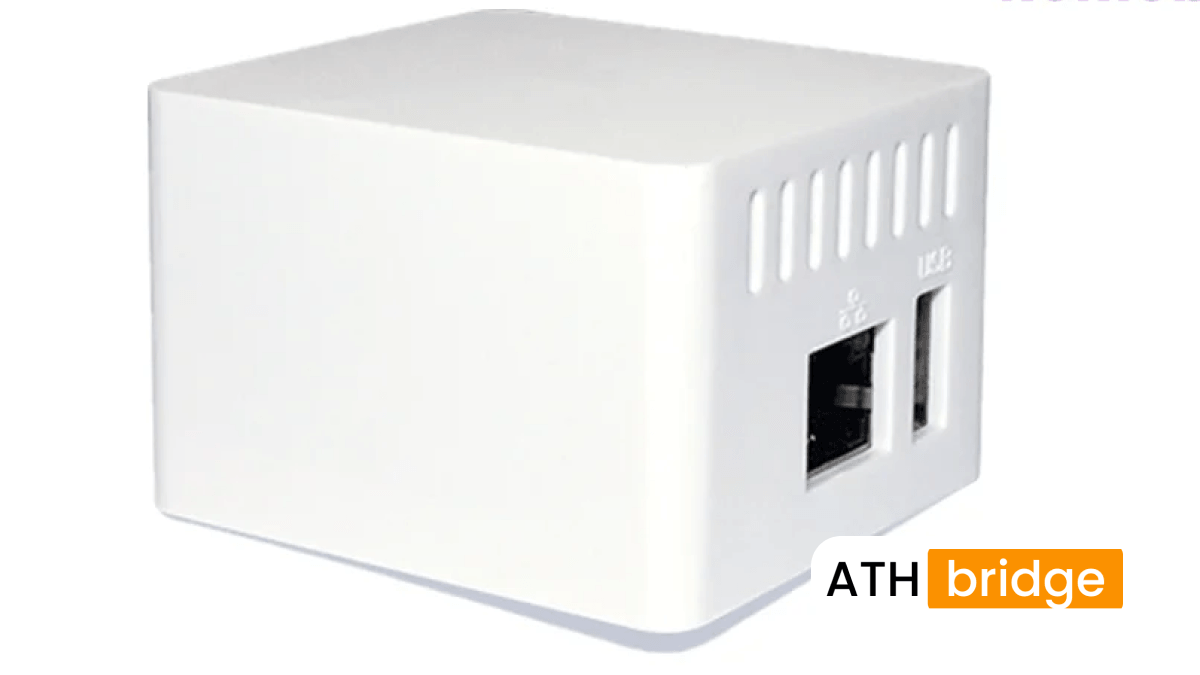
ATH Bridge is plus-and-play HomeBridge server designed to connect non-HomeKit smart devices with Apple HomeKit.
For ADT users, this means ATH Bridge can help make selected ADT devices available inside the Apple Home app. Once connected, you can manage your ADT setup with your Apple devices and create automations with other HomeKit accessories.
Why Choose ATH Bridge for ADT HomeKit?
ATH Bridge is useful because ADT devices are not always designed for native Apple HomeKit control. Instead of replacing your existing ADT setup, ATH Bridge helps bridge the gap between ADT and Apple Home.
Key benefits include:
- Home app control: Manage supported ADT devices from the Apple Home app.
- Siri voice control: Use Siri commands for supported functions.
- Automation support: Connect ADT actions with other smart home routines.
- Plug-and-play setup: ATH Bridge is designed for users who do not want complex manual Homebridge setup.
- Better Apple ecosystem access: Keep your ADT system while using Apple HomeKit style control.
How We Reviewed the ADT HomeKit Setup with ATH Bridge
We reviewed this integration based on the main user needs for ADT HomeKit setup:
- Whether ADT devices can be connected through ATH Bridge.
- How easy the setup process is for non-technical users.
- Whether the Apple Home app can recognize connected devices.
- Whether Siri and automation use cases are practical.
- What common troubleshooting steps users may need.
The main advantage of ATH Bridge is that it gives users a simpler path than setting up Homebridge manually.
How Do You Add ADT Devices to HomeKit Using ATH Bridge?
- Prepare your ADT Devices
- Check whether your ADT device, ADT Pulse device or Blue by ADT devices can work with the ATH Bridge setup.
- Update your ADT device firmware.
- Make sure your Wi-Fi connection is stable.
- Keep your iPhone, iPad, Apple TV or HomePod updated.
- Set Up ATH Bridge
- Connect ATH Bridge to your network
- Follow the ATH Bridge setup instructions.
- Make sure ATH Bridge is online before pairing devices.
- Pair ADT Devices with ATH Bridge
- Put your ADT device into pairing or connection mode.
- Follow the device-specific instructions.
- Add the ADT device to ATH Bridge.
- Confirm that the device appears correctly.
- Link ATH Bridge to Apple HomeKit
- Open the Apple Home app.
- Tap the + button.
- Choose Add Accessory.
- Scan the HomeKit setup code provided with ATH Bridge.
- Follow the on-screen instructions.
- Test ADT HomeKit Control
- Whether the device appears in Apple Home.
- Whether the device responds correctly.
- Whether Siri commands work.
- Whether automation triggers run properly.
- Whether remote access works through your Apple Home hub.
Before starting the integration:
Unbox your ATH Bridge and connect it to power.
Then:
Open the ATH Bridge setup interface and go to the device setup section.
Then:
After your ADT device is connected to ATH Bridge:
Apple says the Home app lets users control smart home accessories across Apple devices and Apple TV or HomePod can act as a home hub for expanded smart home control.
After setup, test each connected ADT device.
Check:
Curious about Geeni smart devices? Read our comprehensive guide: How to Add Geeni Devices to Apple HomeKit
What Can You Do After ADT is Added to HomeKit?
Once your ADT devices are connected through ATH Bridge, you can use them as part of your Apple smart home setup.
Possible use cases include:
- View and manage supported ADT devices from Apple Home.
- Use Siri for supported ADT devices from Apple Home.
- Create automation scenes with lights, sensors, locks and alarms.
- Receive alerts through your Apple devices.
- Combine ADT security actions with other HomeKit routines.
- User-Centric Control: You can manage supported ADT devices from the Apple Home app instead of switching between multiple apps.
- Smart Home Automation: ADT devices can become part of broader Apple Home automations. This makes your security setup feel more connected to your lights, locks and sensors.
- Apple Ecosystem Convenience: If you already use iPhone, Apple Watch, HomePod or Apple TV, HomeKit access makes your ADT system easier to manage inside your existing ecosystem.
- Improved Daily Use: Instead of manually checking different apps, you can control more of your home from one place.
- Check Device Compatibility: Confirm that your ADT device is compatible with the ATH Bridge setup. Some ADT devices may have limited support depending on model, firmware or account configuration.
- Restart ATH Bridge:Restarting the ATH Bridge can sometimes resolve connectivity issues.
- Reconnect ADT Devices: If the device is not responding, remove it from the setup and reconnect it again through ATH Bridge.
- Check Apple Home Settings: Make sure your Apple Home app is properly configured and your Apple Home hub is online.
- Check Wi-Fi and Network Stability: ADT devices, ATH Bridge and your Apple devices should be connected to a stable network.
- You want to connect ADT devices with Apple HomeKit.
- You prefer a plug-and-play bridge.
- You do not want to manually configure a Homebridge server.
- You already use Apple Home, Siri, HomePod or Apple TV.
- You want ADT to work with other smart home automations.
For example, you may create an automation where lights turn on when a security related trigger is detected.
What are the Benefits of Integrating ADT with HomeKit?
Integrating ADT with Apple HomeKit through ATH Bridge given you better control and convenience.
What Should You Check Before Using ATH Bridge with ADT?
Before buying or setting up ATH Bridge, check these points:
| Checkpoint | Why It Matters |
|---|---|
| ADT device type | Not every ADT device may support the same integration path |
| Firmware version | Updated firmware can improve compatibility |
| Wi-Fi stability | Weak Wi-Fi can cause delayed responses |
| Apple Home hub | Needed for better automation and remote access |
| ATH Bridge setup | Bridge must be online and properly configured |
How Do You Troubleshoot ADT HomeKit Integration with ATH Bridge?
If you ADT device does not appear or respond correctly in Apple Home, try these steps.
Apart from this, if you’re interested in the IKEA devices, explore How to Add IKEA Smart Motion Sensors to Apple HomeKit
Is ATH Bridge the Right ADT HomeKit Solution for You?
Choose ATH Bridge if:
Final Thoughts
ADT is a strong home security option, Apple users often want deeper HomeKit control. ATH Bridge helps solves this by connecting supported ADT devices to Apple HomeKit. With ATH Bridge, you can manage supported ADT devices from the Apple Home app, use Siri where supported and create smarter security automations with your Apple ecosystem.
FAQs on Adding ADT Devices to HomeKit Using ATH Bridge
No, ADT does not support Apple HomeKit natively. To connect ADT devices to Apple Home, you need a bridge solution like ATH Bridge, which allows supported ADT devices to appear inside the Apple Home app.
Yes, an Apple Home hub such as a HomePod, Apple TV, or iPad is recommended. It enables remote access, automation, and better performance when controlling ADT devices through Apple HomeKit.
Yes, once your ADT devices are connected to Apple HomeKit through ATH Bridge, you can use Siri to control supported features like arming the system or checking device status, depending on device compatibility.
No, ATH Bridge does not guarantee compatibility with every ADT device. Support depends on the device model, firmware version, and integration method. It is important to check compatibility before setup.
This issue is usually caused by compatibility limitations, outdated firmware, network issues, or setup errors. Make sure ATH Bridge is online, your Apple Home hub is active, and try reconnecting the device.

Sarah Diyana
3 years of experience in smart home & HomeKit I want to share knowledge with anyone struggling to add incompatible devices to HomeKit. Experienced with many workarounds, write about the best methods.