How to Add Honeywell to Apple HomeKit with ATHBridge
Honeywell HomeKit, an integration desired by any Honeywell user. I primarily use Honeywell thermostat in my home and needed to control them through the Apple Home app. Instead of going for overly expensive options, I looked into some workarounds. That is when I stumbled upon the ATHBridge.
Can I Add Honeywell to Apple HomeKit?
Yes, adding Honeywell to Apple HomeKit is possible! If you want a reliable Honeywell homekit setup, the most effective solution is using the ATHBridge.
Key Takeaways
- ATHBridge enables full Honeywell HomeKit integration, even for unsupported devices.
- Works with thermostats, sensors and security systems.
- No coding or Raspberry Pi setup required.
- Provides stable local control (faster and more reliable).
- Setup takes less than 15 minutes in most cases
What is a Honeywell HomeKit Integration?
Honeywell HomeKit integration means connecting Honeywell smart devices like thermostats, sensors, and security systems to Apple Home for centralized control.
Once connected, you can:
Control temperature using Siri
Automate heating and cooling
Monitor devices inside the Apple Home app
Combine Honeywell devices with other HomeKit accessories
Some newer devices are honeywell homekit compatible, but most are not. That’s where ATHBridge becomes essential.
What is the ATHBridge?
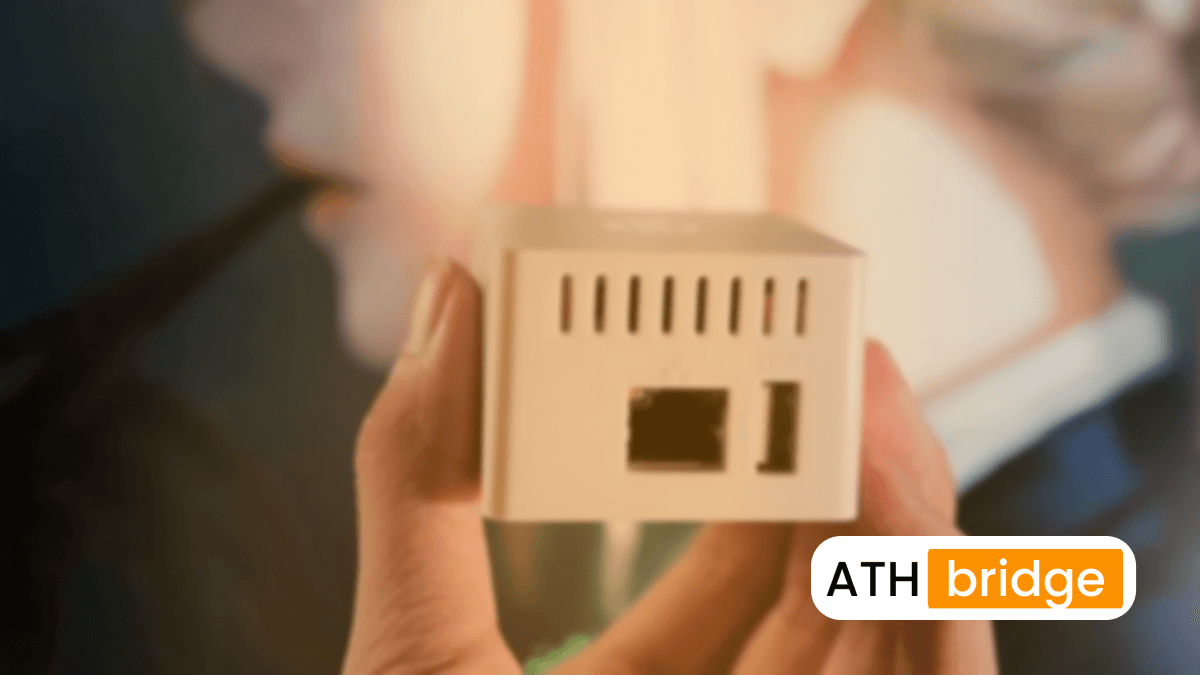
ATHBridge (AddToHomeKit Bridge) is a dedicated hardware device that connects non-HomeKit smart devices like Honeywell thermostats and sensors to the Apple Home app.
It acts as a translator, allowing devices that don’t natively support HomeKit to appear and function like native accessories.
What makes ATHBridge different is its simplicity. It comes pre-configured and ready to use, so there’s no need for coding, Raspberry Pi setups, or always-on computers. Everything runs through an easy web dashboard, making it ideal for both beginners and advanced users who want a stable, plug-and-play HomeKit experience.
In my experience, it’s one of the easiest ways to achieve a full honeywell homekit setup without replacing existing devices.
Why I Use ATHBridge for Honeywell HomeKit Setup?
After testing multiple solutions, ATHBridge is the only one that consistently delivers a true plug and play honeywell homekit setup.
It stands out because:
- Pre-configured system: No manual installation or server setup.
- No coding required: Everything runs through a clean dashbaord.
- Wide compatibility: Supports thousands of devices beyond Honewell.
- Local network control: Faster response times and fewer disconnects.
From my own setup, I noticed:
- Instant response in the Home app.
- No "No Response" errors after initial setup.
- Smooth Siri automation
People Also Search
How to Set Up Honeywell HomeKit Using ATHBridge?
This is the exact process I followed to get my system running.
Connect ATHBridge
- Plug ATHBridge into your router via Ethernet.
- Power it on.
- Always use a wired connection for maximum stability.
Open the Dashboard
- On your phone or computer, open a browser.
- Enter the ATHBridge local URL.
- You’ll see a clean interface for managing devices.
Install Honeywell Integration
- Go to the Plugins section.
- Search for the Honeywell / Resideo plugin.
- Install it to enable communication with your devices.
Add Your Honeywell Account
- Enter your Honeywell (Resideo) login details.
- Save the settings.
- Your devices will appear in the dashboard within seconds.
Connect to Apple Home
- Open the Apple Home app.
- Tap “+” and select Add Accessory.
- Scan the QR code from ATHBridge.
- Your devices will instantly sync.
Organize Devices
- Assign devices to rooms.
- Rename devices for Siri.
- Example: Rename “Thermostat 1” to “Living Room Thermostat.”
Which Honeywell Devices Work with HomeKit?
Native Honeywell HomeKit Compatible Thermostats
These models usually work directly with Apple Home:
- Honeywell Lyric T5 and T6 Pro
- Honeywell Home T9 Smart Thermostat
- Honeywell Home T10 Pro
- Lyric Round Thermostat
Devices That Need the ATHBridge
- Older Wi-Fi thermostats (RTH series)
- Total Connect 2.0 security systems
- Honeywell Evohome setups
- Sensors and leak detectors
- Most Honeywell cameras
How to Fix Common Honeywell HomeKit Issues
Even with a stable setup, small issues can happen. Here's what I have learned:
Device Shows “No Response”
- Restart ATHBridge.
- Restart your Home Hub (Apple TV or HomePod).
- Check your network stability.
Devices Not Appearing
- Recheck your Honeywell (Resideo) login details.
- Restart the plugin.
- Ensure devices are online in the Resideo app.
Siri Not Recognizing Commands
- Use simple and clear device names.
- Avoid similar or confusing names.
- Example: “Hall Thermostat” works better than “Hallway Temperature Controller.”
How to Use Honeywell HomeKit Thermostat Like a Pro
Once everything is connected, this is where the real value comes in.
Siri Voice Control
- "Hey Siri, set temperature to 24 degrees"
- "Turn off heating"
Automation Ideas
- Geofencing - Automatically adjust temperature when you leave home.
- Night Mode - Lower temperature when you go to sleep.
- Energy Saving - Reduce heating during work hours.
Energy Optimization Tip
From my experience:
- Set temperature schedules instead of manual control.
- Combine with motion sensors for smarter automation.
This can reduce energy usage significantly.
Is the ATHBridge Worth It for Honeywell HomeKit?
Based in real-world use, yes. Especially if you:
- Own older Honeywell devices
- Want a unified Apple Home experience
- Prefer stability over DIT complexity.
It removed all the friction from Honeywell HomeKit integration and turns your setup into something that just works.
Conclusion
A complete honeywell homekit setup doesn’t require replacing your devices. With ATHBridge, you can bring everything, thermostats, sensors, and security—into Apple Home effortlessly. From my own setup, the biggest benefit is simplicity. Once connected, everything works like a native HomeKit device. If you want a smarter, more connected home without the technical headache, this is the solution I recommend.
FAQs about Honeywell HomeKit
No. Only select newer models are natively compatible. Most devices require a bridge like ATHBridge for full HomeKit integration.
Yes. It is designed as a plug-and-play solution with no coding required, making it ideal for both beginners and advanced users.
Yes. Using ATHBridge, many Honeywell security systems and sensors can be integrated and monitored through Apple Home.
It involves restarting your bridge, reconnecting devices, and re-pairing them with Apple Home to fix connectivity issues.
Yes. Devices must be connected to a stable Wi-Fi network, preferably 2.4GHz, for proper communication.

Sarah Diyana
3 years of experience in smart home & HomeKit I want to share knowledge with anyone struggling to add incompatible devices to HomeKit. Experienced with many workarounds, write about the best methods.