How to Add Eufy Devices to Apple HomeKit [Complete 2026 Guide]
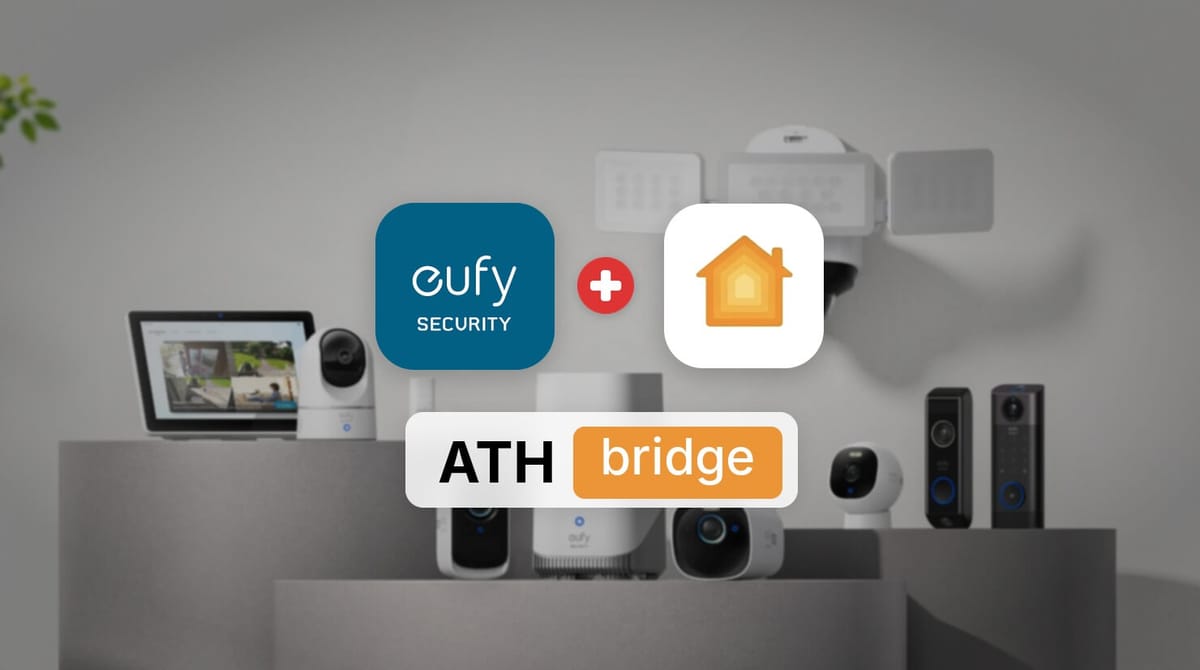
Eufy makes excellent security cameras, doorbells, and smart locks. But bringing them into Apple HomeKit is not always straightforward. Some Eufy devices support HomeKit natively. Many do not. The setup path changes depending on your exact model and using the wrong method wastes time and causes frustration.
This guide walks you through every working Eufy-to-HomeKit setup path in 2026.
Eufy supports Apple HomeKit through four paths:
01. Using Bridge Solutions (ATHBridge)
02. HomeBase 3 (S380) for the eufyCam S3 Pro
03. HomeBase 2 for the eufyCam 2 series and Indoor Cam 2K models
04. Direct Wi-Fi pairing for the Indoor Cam E30 (no hub required)
Eufy Matter smart locks (E30, E31, C34) join Apple Home through the Matter standard.
If your Eufy device is not on this list (for example, the eufyCam S330, Video Doorbell E340, SoloCam range, floodlight cameras, or older Wi-Fi locks like the C210), it does not support HomeKit natively. The recommended solution is ATHBridge, a pre-flashed Homebridge server that connects unsupported Eufy devices to Apple Home without replacing your hardware.
Recommended Solution: ATHBridge
Own a Eufy device that does not support HomeKit natively?
ATHBridge is a plug-and-play Homebridge server that brings unsupported Eufy cameras, doorbells, floodlights, and older smart locks into the Apple Home app. No subscriptions. 100% local control. Works with Siri and HomeKit automations.
What to Do If Your Eufy Device Does Not Support HomeKit
If your Eufy device is not on the native compatibility list, you have two options:
- Replace the hardware with a HomeKit-compatible model.
- Use a bridge to bring the existing device into Apple Home.
Replacing working hardware is expensive and wasteful. A bridge is the more practical choice.
Why ATHBridge Is the Recommended Bridge Solution
ATHBridge is a pre-flashed Homebridge server designed for plug-and-play HomeKit integration. It is a hardware solution, not a software-only workaround. This makes it accessible to users who do not want to configure a Raspberry Pi or manage a Homebridge installation manually.
Key advantages of ATHBridge:
- Plug-and-play setup. Ready in minutes, not hours. Plug it in, connect it to your network, and add it to the Home app.
- No subscriptions or monthly fees. Unlike some cloud-based bridge services, ATHBridge does not charge recurring fees.
- 100% local control. Your device commands stay in your home and do not depend on a third-party cloud.
- Works with Apple Home, Siri, and Shortcuts. Once bridged, your Eufy devices appear as native HomeKit accessories.
- Broad device support. ATHBridge exposes Eufy cameras, doorbells, floodlights, and older smart locks that Eufy never updated for HomeKit.
Which Eufy Devices Benefit Most from ATHBridge
ATHBridge is most valuable for Eufy devices that have no native HomeKit path at all.
Cameras and doorbells:
- eufyCam S330
- eufyCam S4
- Video Doorbell E340
- Video Doorbell Dual
- Video Doorbell C31
- SoloCam range
- Eufy floodlight cameras
Smart locks:
- Older Wi-Fi smart locks such as the C210 (no Matter support)
Why Eufy HomeKit Compatibility Is Confusing
Eufy’s HomeKit support is not universal. It also does not follow a simple rule.
Here is the problem in plain terms:
- The eufyCam S3 Pro works with HomeKit.
- The newer eufyCam S330 and eufyCam S4 do not.
- The Indoor Cam E30 connects directly to HomeKit.
- Many other indoor cameras require a HomeBase.
The model name matters far more than the brand name when you are planning a HomeKit setup. This guide groups Eufy devices by their connection method so you can find your exact device quickly.
Eufy Devices That Work With Apple HomeKit Natively
The table below covers every Eufy product line that currently supports HomeKit. It also shows the hub or connection method each device requires.
| Eufy Device | HomeKit Support | Connection Method | HomeKit Secure Video |
|---|---|---|---|
| eufyCam S3 Pro | Yes | HomeBase 3 (S380) | Yes, 1080p |
| eufyCam 2, 2 Pro, 2C, 2C Pro | Yes | HomeBase 2 | Yes, 1080p |
| Indoor Cam 2K, Pan & Tilt 2K | Yes | HomeBase 2 | Yes, 1080p |
| Indoor Cam E30 | Yes | Direct Wi-Fi (no hub) | Yes, 1080p |
| Smart Lock E30, E31, C34 | Yes | Matter over Thread | Not applicable |
| eufyCam S330, eufyCam S4 | No | Bridge only | Via Homebridge |
| Video Doorbell E340, Dual, C31 | No | Bridge only | Via Homebridge |
| SoloCam series | No | Bridge only | Via Homebridge |
| Floodlight cameras | No | Bridge only | Via Homebridge |
The pattern is clear: Eufy’s native HomeKit support is concentrated in a small number of cameras and three Matter locks. Most doorbells, floodlights, and newer flagship cameras are excluded.
If your device falls into the “No” row, jump to the ATHBridge section for the recommended bridge solution.
See more: How to add Z-wave devices to Apple HomeKit
How to Add Eufy Cameras With a HomeBase
Applies to: eufyCam S3 Pro (HomeBase 3), eufyCam 2 series (HomeBase 2), and Indoor Cam 2K models (HomeBase 2).
The workflow is nearly identical across these devices. Only the firmware requirements differ.
Step 1: Update Firmware Before You Start
For the eufyCam S3 Pro, Eufy requires:
- HomeBase S380 firmware: 3.5.9.7 or higher
- Camera firmware: 3.0.9.3 or higher
Update the eufy Security app first. Then update the HomeBase and cameras from within the app.
If the HomeKit setup option is missing, outdated firmware is the most common cause.
Step 2: Set Up the HomeBase and Cameras in the eufy App
- Connect the HomeBase to your router with an Ethernet cable.
- Add the HomeBase in the eufy Security app.
- Pair your cameras.
For eufyCam 2 series cameras, press the SYNC button on the camera for two seconds. Then press the SYNC/ALARM OFF button on the HomeBase to complete pairing.
Step 3: Activate HomeKit in HomeBase Settings
Once the cameras work in the eufy app:
- Open HomeBase Settings.
- Select HomeKit Setup.
- Follow the on-screen prompts to generate the HomeKit pairing code.
Step 4: Add the HomeBase Bridge in the Apple Home App
- Open the Apple Home app.
- Tap the plus icon and choose Add Accessory.
- Scan the HomeKit code.
Tip: Some HomeBase units have a QR code with a Home logo printed on the bottom. You can scan that code directly without going through the eufy app first.
After scanning, assign the cameras to rooms and name them.
Step 5: Enable HomeKit Secure Video (Optional)
You need two things for HomeKit Secure Video:
- A home hub (HomePod or Apple TV)
- A compatible iCloud+ plan
iCloud+ plans and camera limits:
| Plan | Price | Camera Limit |
|---|---|---|
| 50GB | $0.99/month | 1 camera |
| 200GB | $2.99/month | Up to 5 cameras |
| 2TB | $9.99/month | Unlimited cameras |
HomeKit Secure Video recordings do not count against your iCloud storage. The iCloud+ subscription is still required.
How to Add the Indoor Cam E30 Directly to HomeKit
The Indoor Cam E30 is the simplest Eufy camera to bring into HomeKit. It needs no HomeBase and no eufy account. It is a true standalone HomeKit camera, which makes it a strong choice for HomeKit-first households.
Step 1: Locate the HomeKit Code on the Camera
The E30 has a HomeKit setup code printed on the device. You do not need to open the eufy app before starting.
Step 2: Add the Camera in the Apple Home App
- Open the Apple Home app.
- Tap the plus icon and choose Add Accessory.
- Scan the HomeKit code on the E30.
The camera joins your Wi-Fi network directly and appears as a HomeKit accessory. Reviewers report onboarding in about three minutes with no resets or errors.
Step 3: Use the E30 as a HomeKit Motion Sensor
HomeKit recognizes the E30’s motion events. This means you can use it to trigger other HomeKit devices.
Example automation: Turn on lights when the camera detects motion.
This works natively in the Home app without any extra bridge.
Step 4: Add the eufy App Later for Advanced Features
Want pan-tilt controls, local recording to a microSD card, or pet tracking? Install the eufy app after HomeKit setup and use both apps side by side.
- HomeKit handles streaming and HomeKit Secure Video.
- eufy app unlocks the E30’s advanced hardware features.
Note: HomeKit streaming is limited to 1080p even though the E30 supports higher native resolution.
How to Add Eufy Matter Smart Locks to Apple Home
Eufy’s newer smart locks do not use HomeBase for HomeKit. They join Apple Home through Matter, the cross-platform smart home standard that Apple Home supports natively.
Step 1: Confirm Your Lock Is Matter-Compatible
Matter-enabled Eufy lock models:
- Smart Lock C34/E30
- Smart Lock E31
- Select FamiLock lines
Not Matter-compatible: Older Wi-Fi locks such as the C210. These will not work with HomeKit natively and fall into the bridge category.
Step 2: Set Up the Lock in the eufy App First
Matter pairing requires the lock to be configured in the eufy app before you can pair it with Apple Home.
- Install the lock.
- Connect it to your network.
- Complete the basic setup in the eufy Security app.
Step 3: Generate the Matter Pairing Code
In the eufy app:
- Open the lock’s Settings.
- Select Works with Matter.
- Choose Connect to Third-party Ecosystem.
- Select Apple.
- Tap Start Pairing.
The app will display a Matter pairing code or QR code.
Step 4: Pair the Lock in the Apple Home App
- Open the Apple Home app.
- Tap the plus icon and choose Add Accessory.
- Scan the Matter code.
iOS 18 or later: You can add and control Matter devices in the Home app without a separate hub when using an iPhone 15 Pro or later for Thread-based devices.
For remote access and automations, a home hub such as a HomePod or Apple TV is still recommended.
What You Give Up When You Use HomeKit With Eufy
Native HomeKit integration is convenient, but it does not expose every Eufy feature. Understanding these trade-offs will help you decide whether to use HomeKit as your primary interface or keep the eufy app for daily control.
1080p Resolution Cap
Apple Home does not support 2K or 4K streaming for third-party cameras. Even if your Eufy camera records in 4K locally, the Home app will display and record at 1080p.
This applies to both native HomeKit connections and bridged connections.
If native resolution is important: Use the eufy app for live viewing and rely on HomeKit for automations and Siri control.
Missing Advanced Camera Features
These controls are not exposed in the Apple Home app:
- Pan-and-tilt controls
- Color night vision settings
- Spotlight modes
- Some AI tracking features
They remain exclusive to the eufy Security app. If you want the full feature set of a camera like the E30, you need to use the eufy app alongside HomeKit.
Dual-App Management
You can run both apps at the same time. However, managing notifications and settings across two interfaces can be cumbersome.
A practical approach:
- Use HomeKit for: Siri voice commands, cross-device automations, HomeKit Secure Video
- Use the eufy app for: Firmware updates, advanced camera configuration
Community discussions reflect mixed opinions on whether the HomeKit trade-offs are worth abandoning the native eufy app. The right balance depends on how much you value Apple Home automations versus Eufy’s full feature set.
Troubleshooting Common Eufy HomeKit Setup Issues
The HomeKit Setup Option Is Missing in the eufy App
Cause: Outdated firmware.
Fix:
- Update both the HomeBase and the camera to the latest versions.
- Restart the eufy app.
- For the S3 Pro, confirm HomeBase S380 is on firmware 3.5.9.7 or higher and the camera is on 3.0.9.3 or higher.
The Home App Cannot Find the Eufy Bridge or Camera
Cause: Network mismatch or client isolation.
Fix:
- Ensure your iPhone is on the same Wi-Fi network as the HomeBase or camera during pairing.
- If you use a mesh network or a network with client isolation, temporarily disable isolation.
- Move closer to the router.
- For the Indoor Cam E30, scan the HomeKit code on the camera itself, not a code from the eufy app.
A Matter Lock Fails to Pair With Apple Home
Cause: The lock and the Apple Home hub are on different subnets.
Fix:
- Move the lock and the Apple TV or HomePod to the same network during pairing.
- Confirm the lock has been fully set up in the eufy app before starting Matter pairing.
The ATHBridge Plugin Cannot Connect to Eufy
Cause: Incorrect account setup or two-factor authentication interference.
Fix:
- Confirm you are using a dedicated guest account.
- Confirm the guest account has been granted access to the devices you want to bridge.
- If you have two-factor authentication enabled on your main Eufy account, the guest account approach avoids OTP interruptions during plugin configuration.
Final Thoughts
Adding Eufy devices to Apple HomeKit is straightforward once you match your device to the correct path:
| Device Type | Setup Path |
|---|---|
| Most compatible cameras | HomeBase bridging |
| Indoor Cam E30 | Direct Wi-Fi pairing |
| Newer smart locks | Matter |
The main compromise is feature depth. HomeKit gives you Siri, automations, and HomeKit Secure Video. The eufy app remains necessary for 2K and 4K resolution and advanced camera controls.
For Eufy devices that never received native HomeKit support, ATHBridge is the recommended solution. It is a plug-and-play hardware bridge with no subscriptions and fully local control. It brings unsupported Eufy cameras, doorbells, floodlights, and older locks into the Apple Home app without forcing you to replace hardware that still works.
If you are building a HomeKit-first smart home and want to keep your existing Eufy devices in the mix, ATHBridge is the simplest path to get there.
Ready to bring your Eufy devices into Apple Home?
Get ATHBridge →
Frequently Asked Questions
Can I add Eufy cameras to HomeKit without a HomeBase?
Only the Indoor Cam E30 supports direct HomeKit pairing without a HomeBase.
All other HomeKit-compatible Eufy cameras require a HomeBase 2 or HomeBase 3:
- eufyCam 2 series
- eufyCam S3 Pro
- Indoor Cam 2K
Does the eufyCam S3 Pro work with HomeBase 2 for HomeKit?
No. The eufyCam S3 Pro requires HomeBase 3 (S380) and is not compatible with HomeBase 2. If you are upgrading from an older eufy system, you must use the S380 HomeBase to enable HomeKit on the S3 Pro.
What iCloud plan do I need for HomeKit Secure Video with Eufy?
| Plan | Camera Limit |
|---|---|
| 50GB iCloud+ | 1 camera |
| 200GB iCloud+ | Up to 5 cameras |
| 2TB iCloud+ | Unlimited cameras |
You also need a home hub such as a HomePod or Apple TV 4K for HomeKit Secure Video to work.
Can I control my Eufy camera’s pan and tilt features in Apple Home?
No. Pan-and-tilt controls, color night vision adjustments, and AI tracking settings are only available in the eufy Security app.
Apple Home exposes:
- Basic live view
- Motion detection
- HomeKit Secure Video recording
It does not expose the camera’s full hardware feature set.
What if my Eufy device does not support HomeKit natively?
Use ATHBridge to bring it into Apple Home.
This applies to:
- eufyCam S330
- Video Doorbell E340
- SoloCam range
- Floodlight cameras
- Older Wi-Fi smart locks
ATHBridge is a pre-flashed Homebridge server that connects non-HomeKit devices to the Home app. It enables Siri control and HomeKit automations without replacing your existing Eufy hardware.
Is ATHBridge better than setting up Homebridge myself?
ATHBridge is a hardware solution that comes pre-flashed and ready to use.
A DIY Homebridge setup can work if you are comfortable with:
- Installing Homebridge on a Raspberry Pi
- Configuring Node.js versions
- Managing plugins manually
ATHBridge removes that technical overhead. It is the simpler choice for users who want local HomeKit control without maintaining a software stack.
Which Eufy locks work with HomeKit through Matter?
These Eufy locks support Matter and can be paired with Apple Home through the eufy app’s Matter pairing flow:
- Smart Lock E30
- Smart Lock E31
- Smart Lock C34

Ishara Fernando
Smart Home Researcher | Zigbee & Smart Home Technology Expert | Sharing Real-World Experiences & Research | Blogger & Freelance Writer | Turning Complex Smart Home Tech Into Simple, Practical Guides | Helping You Build Smarter, Connected Homes